
Workflows
EnterpriseWorkflows automate recurring tasks around business cards.
A workflow always has one trigger and any number of actions.
Workflow overview
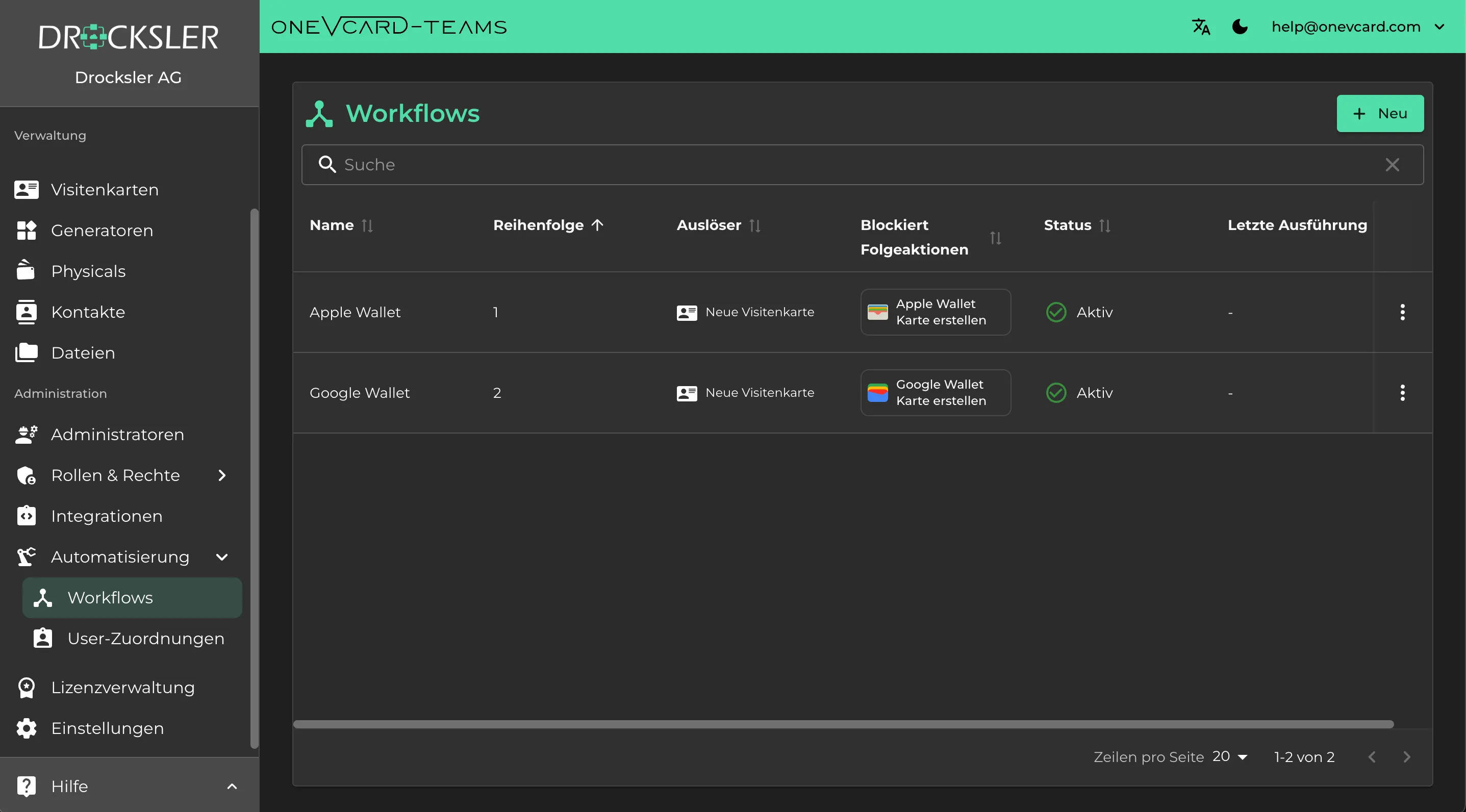
The workflow overview lists every workflow in the current context:
Workflow order
Order defines which workflow runs first, second, and so on when the trigger matches.
That matters when several workflows use the same trigger.

Triggers
A workflow has only one trigger. The trigger runs matching workflows in order.
Example:
If three business cards are created, the trigger runs once per card. If a trigger run is ended, that only affects the current card.
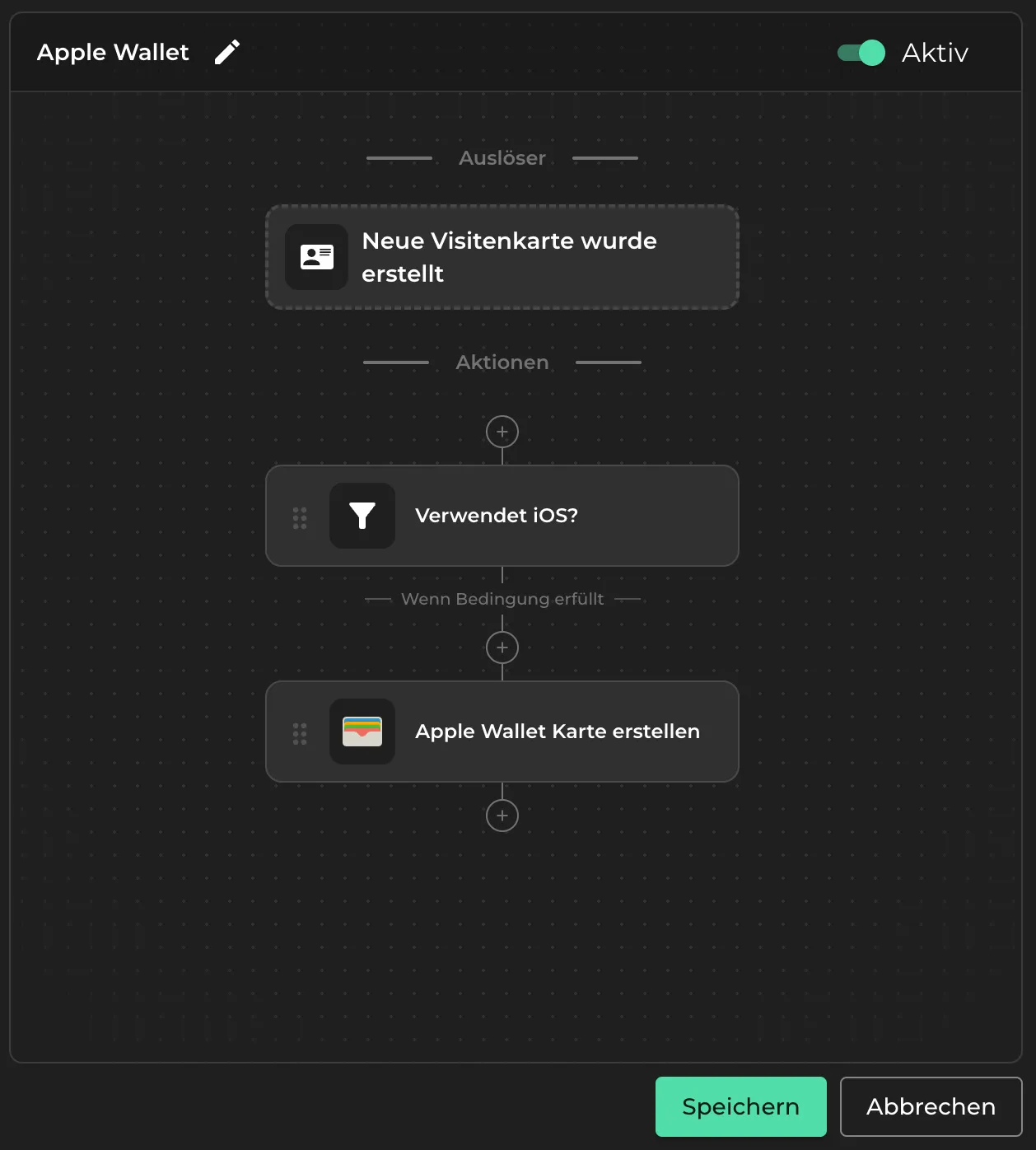
New business card created
The workflow runs when a new business card is created.
Actions in a workflow
A workflow can contain any number of actions.
Actions run sequentially from top to bottom.
Generate Google Wallet
Creates a Google Wallet and emails it to the business card owner.
Generate Apple Wallet
Creates an Apple Wallet and emails it to the business card owner.
End workflow
Stops the current workflow.
End trigger execution
Stops running further workflows (by order) for this trigger.
Filter
The following actions in the workflow run only if all conditions are met.
Edit and reorder actions
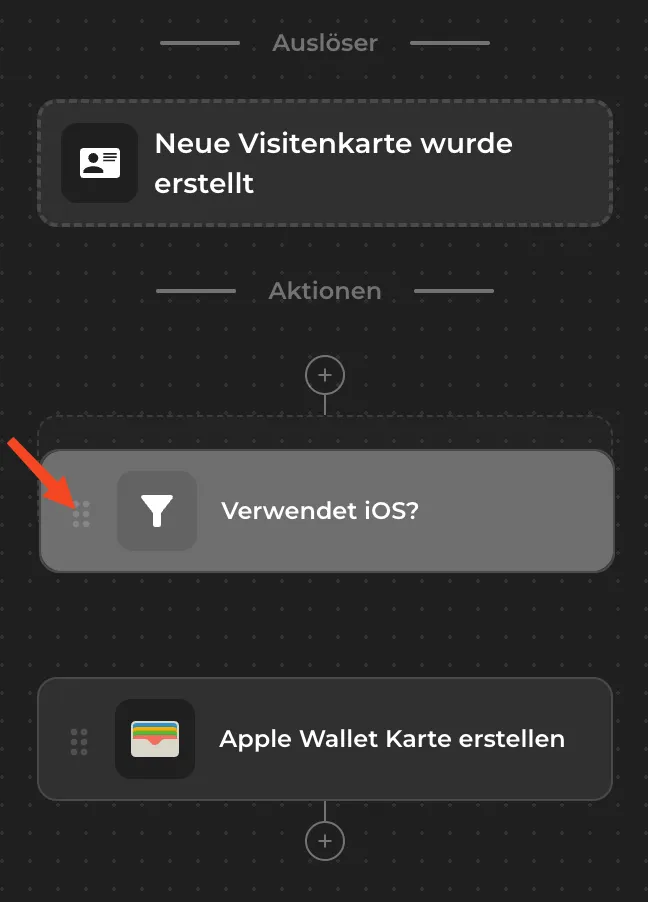
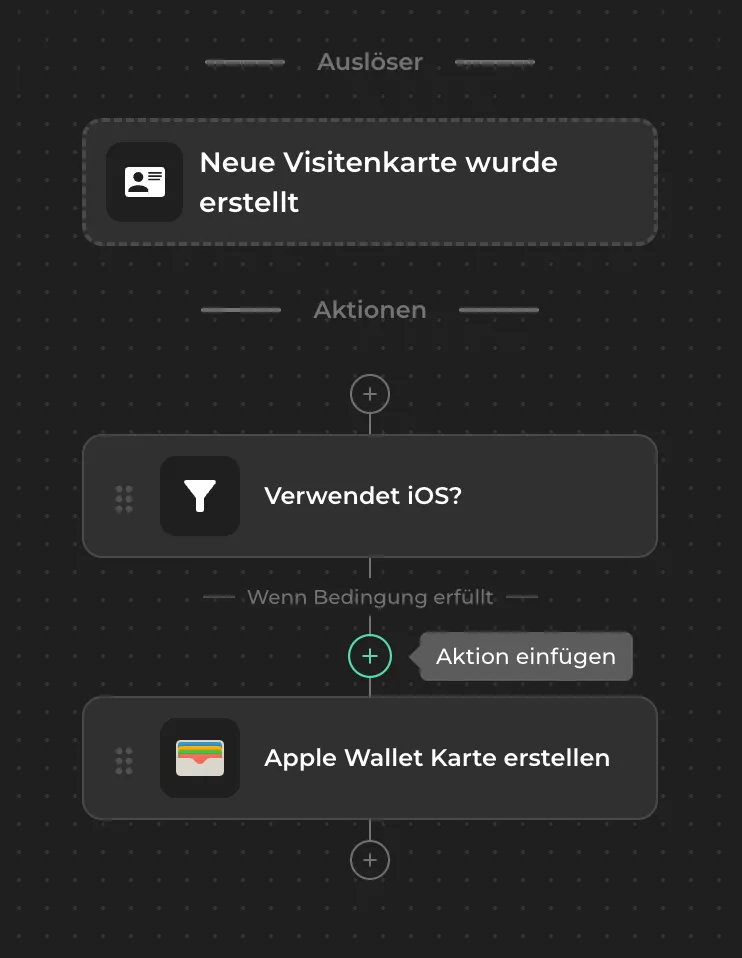
You can manage actions in the UI by:
- changing order with drag and drop
- inserting a new action between two actions with the + button
That lets you control the flow in fine detail.
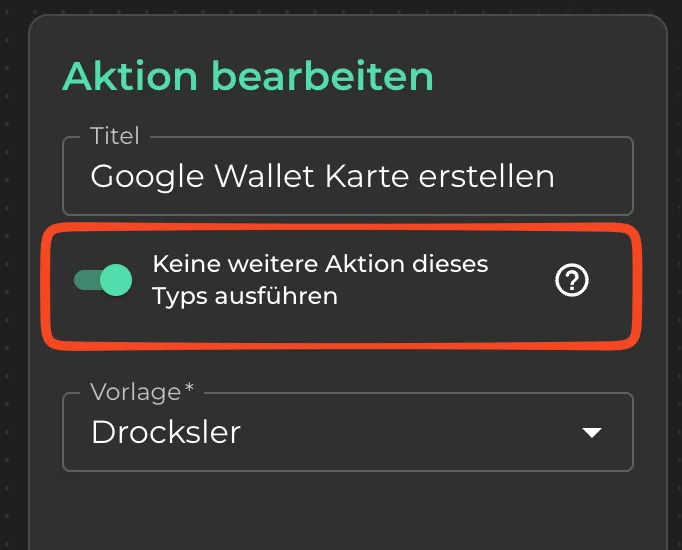
Avoid running the same action twice
Each action can use a toggle that prevents the same action from running again in the same trigger execution.
Example:
If a later workflow again includes Generate Google Wallet, that action is skipped if it already ran in the current execution.
Enable, disable, and name workflows
- A workflow can be disabled and is then ignored when runs are evaluated.
- Workflows can be named for clarity.
- Actions can be named as well.
Clear names help when you operate many workflows or troubleshoot.