
SSO via Microsoft Entra ID
EnterpriseTo use Single Sign-On for oneVcard, a new app registration must be created in Azure Active Directory.
The “Application ID (client),” “OpenID Connect Metadata Document,” “Client Secret,” and “Microsoft Azure AD Domain” generated during the setup process must be provided to oneVcard for further configuration.
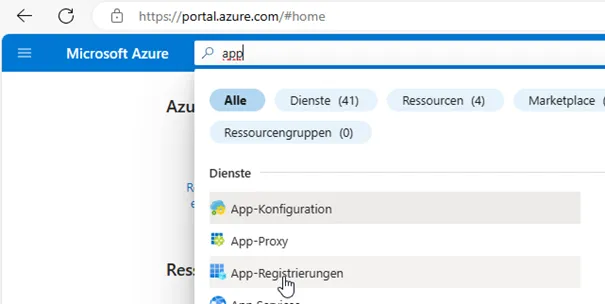
To do this, open the “App Registrations” service in the Azure portal.
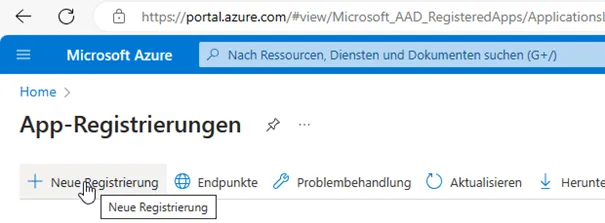
Select the menu item ”+ New Registration.”
In the first step, configure a name, supported account types, and the redirect URI.
The name can be freely chosen.
The account type should be selected based on your environment.
For the redirect URI, select “Web” as the type and enter the URL provided by oneVcard.

Click the “Register” button to complete the registration.
Afterward, the overview page of the created app registration appears.
Here, you can find the “Application ID (client).”
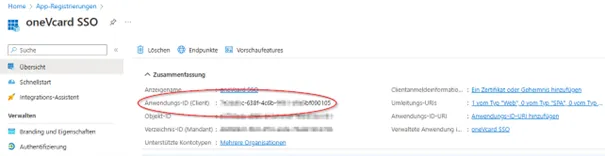
The “OpenID Connect Metadata Document” URL is also required. Click the “Endpoints” button and copy the value from the respective field. This must be provided to oneVcard.

Next, the “Client Secret” must be generated.
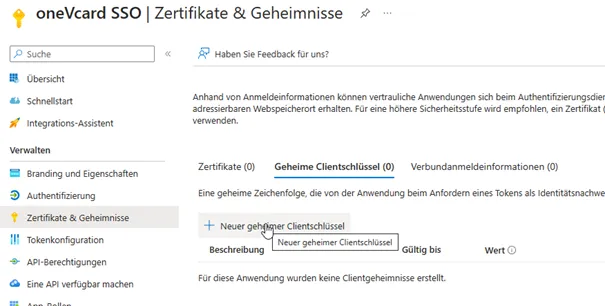
To do this, go to the “Certificates & Secrets” menu.
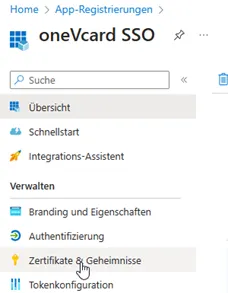
Then, create a new secret via ”+ New Client Secret.”
For the secret, enter a freely chosen “Description” and select a validity period.
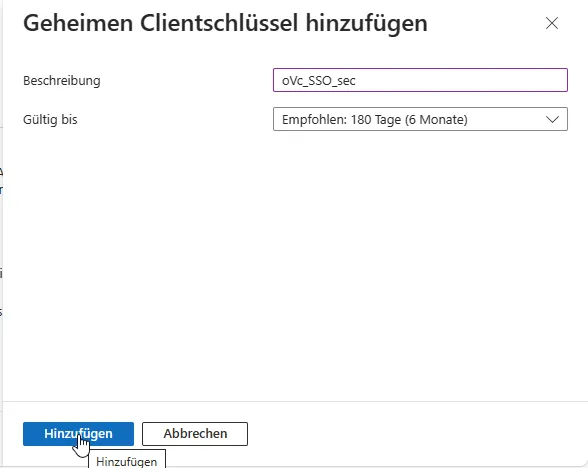
It is not possible to extend the validity of the secret.
Before the validity expires, you must create a new secret and provide it to oneVcard!
After clicking “Add,” the newly generated secret will be displayed.
!! IMPORTANT NOTICE !!
This is the only time the secret will be shown!
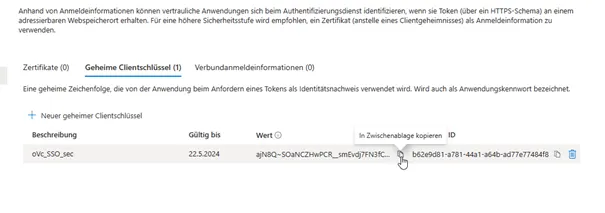
Use the copy icon to copy the value to the clipboard and document it. This must be provided to oneVcard.
Data to be provided
To complete the configuration on oneVcard’s side, the following data must be provided:
- Allowed domains for sign-in
- Application ID (client)
- Client Secret
- OpenID Connect Metadata Document URL
Troubleshooting
Error Message “Admin Consent Required”
If this error message appears during the login attempt, an admin must grant consent once. To do so, go to “API Permissions” in the app registration and click “Grant Admin Consent for [Organisation].”